How it works
Open, capture, verify, sign, send. Under ten minutes after the last photo, with no project to set up first.
Capture
Photograph the defect, mark it up, hold the mic and say what you see. Arabic, English or both in one sentence.
- The app opens at the camera. Take one or more photos per finding; the time and position are stamped on each one.
- Mark it up with an arrow, a circle or the pen, and blur faces or number plates. Then hold the mic and describe the defect the way you would to a colleague.
- Everything is saved on the phone at once. No signal is needed to keep working.
Draft
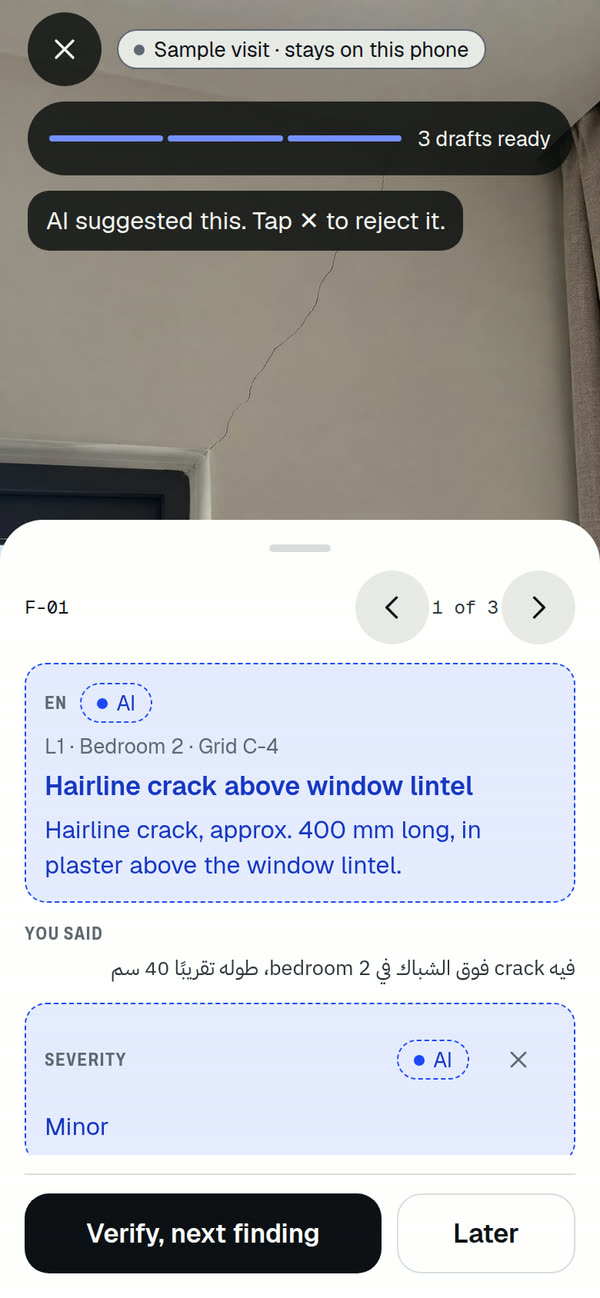
The draft card rises with a clean title and observation in your words, and suggestions in dashed blue.
- Your note becomes a clear title and a third-person observation that keeps every fact you said and adds none.
- Severity, corrective action and trade arrive as suggestions in dashed blue, each with an AI tag. A value the report needs that you did not say is marked as missing, never guessed.
- Offline, the note waits in a queue and drafts when the phone is back online. You can carry on capturing.
Verify
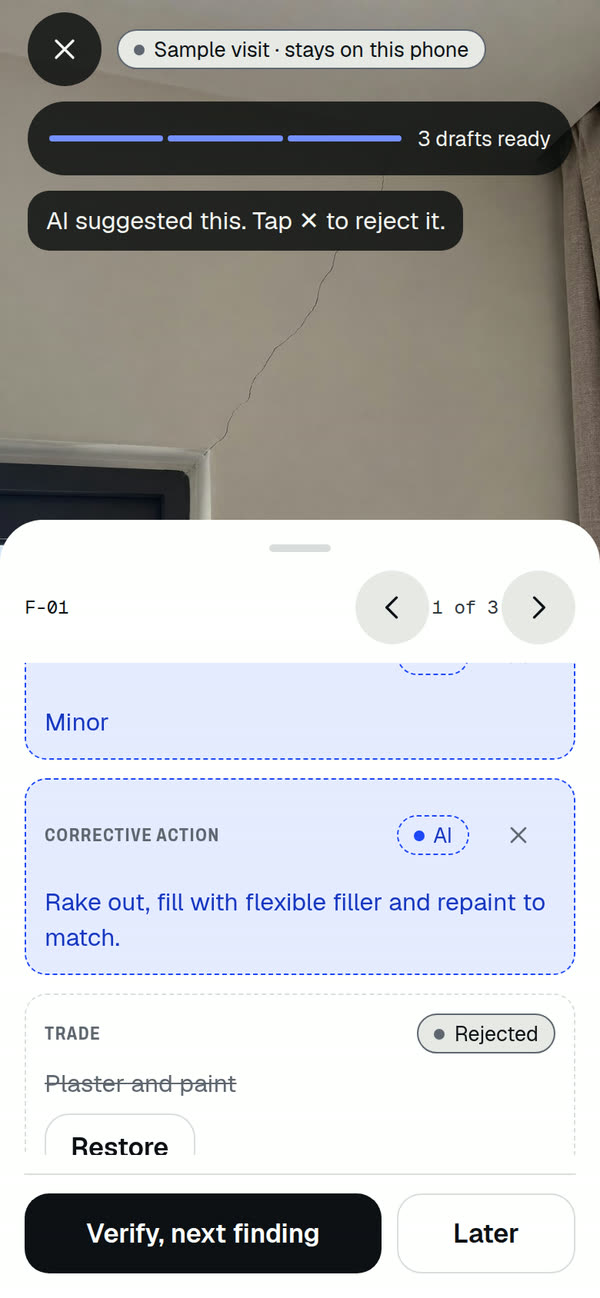
Reject what is wrong, edit what is close, then verify. One deliberate tap per finding.
- Tap the cross on any suggestion to reject it. A rejected suggestion never prints. Tap a value to put it in your own words.
- Verify, next photo moves on. Later parks the finding so you can finish it on Review.
- There is no verify-all button. Each finding is verified on its own, by you.
Sign
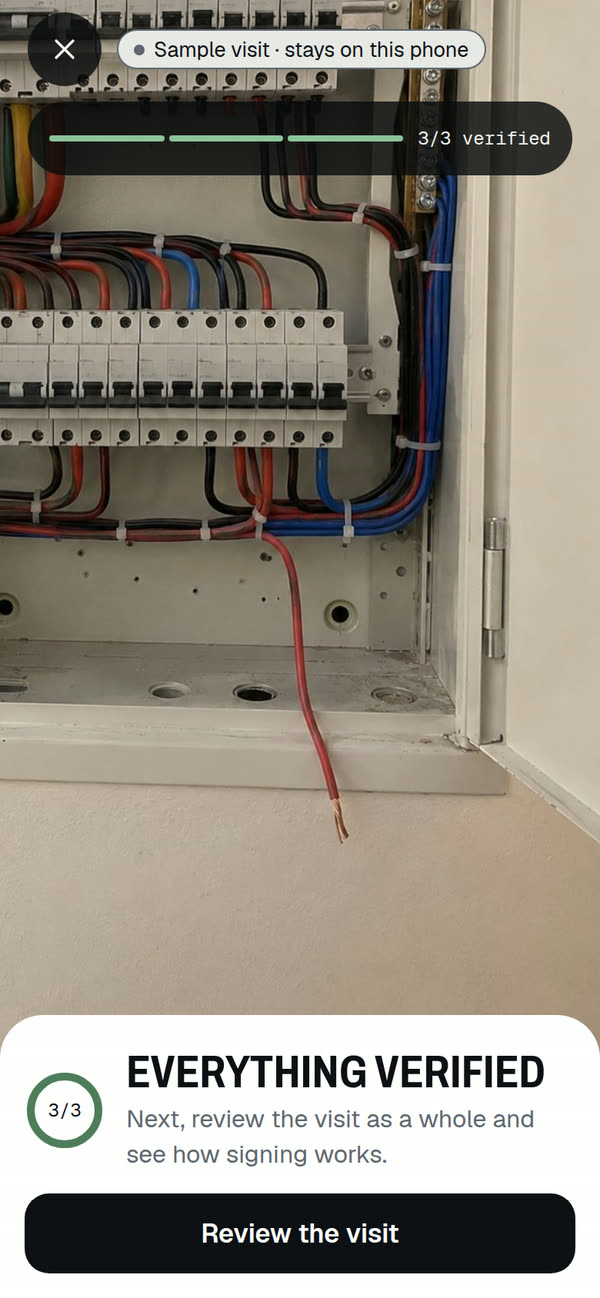
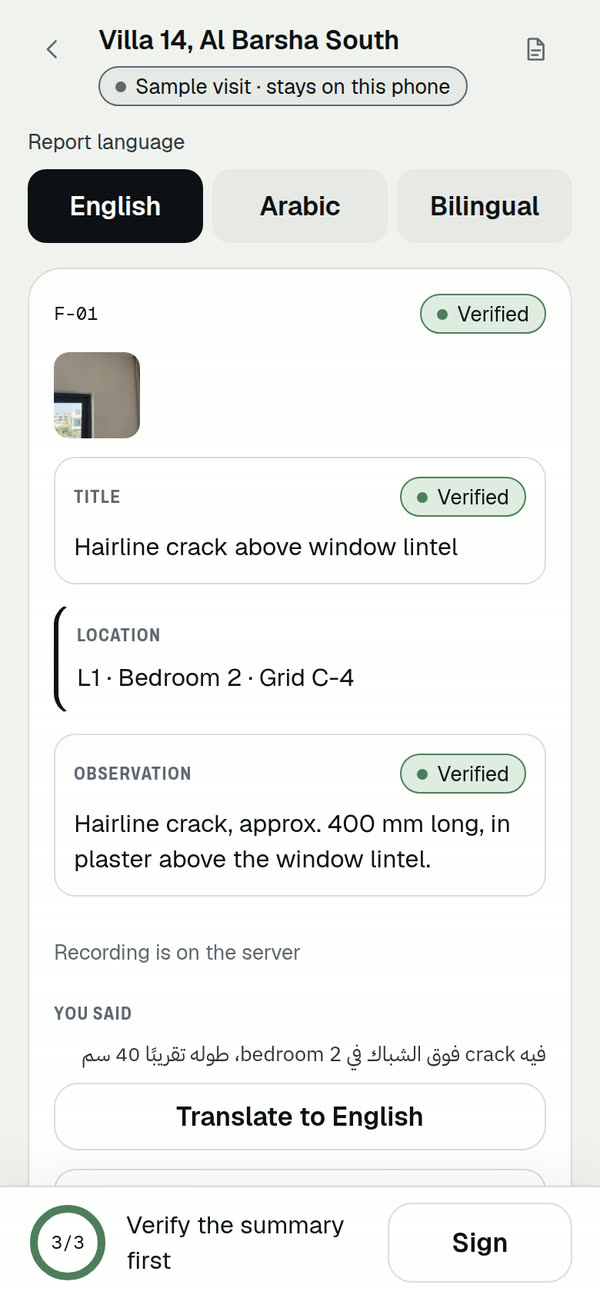
Review the visit as a whole. Sign opens only when every finding and the summary are verified.
- Review lists every finding with its photos and fields, then the executive summary, drafted from verified findings only.
- The gate bar counts what is left. A locked Sign still answers: it takes you to the first thing to verify and says why.
- Sign with your finger or your saved signature, tick the statement, and the revision is locked.
Send
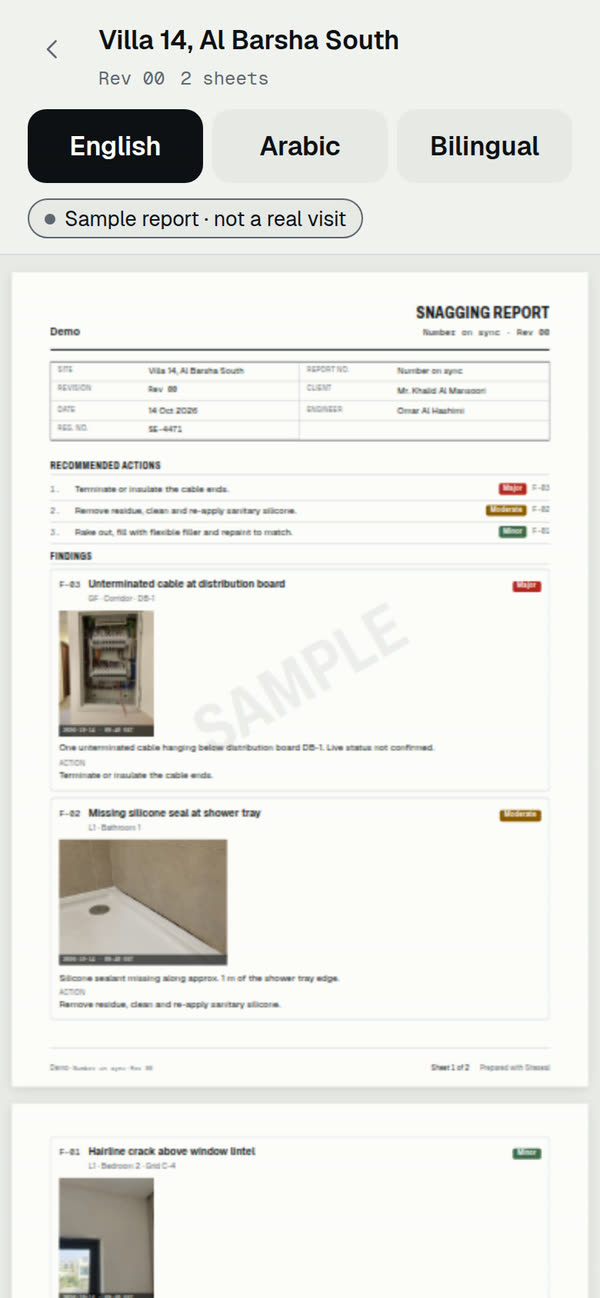
Preview the PDF in English, Arabic or both, then send it by WhatsApp, email, link or as a file.
- The preview shows the exact sheets the server prints, with your firm branding and report number.
- Pick the recipients from the site contacts and the channel. WhatsApp goes one recipient at a time.
- Each link shows when it was opened, and you can withdraw a link you sent by mistake.


Built for the site, not the office
Capture works with no signal at all. Notes draft when the phone reconnects, and the phone never waits for the AI. Buttons are large enough for gloves and the light theme reads in the sun.
Try it on the sample visit
The app opens with a sample visit of three real findings. Verify them, reject a suggestion and see the signed PDF before your first real report.
Coming soon to the App Store and Google Play